NewLight Point: Difference between revisions

From Valve Developer Community
Jump to navigation Jump to search
 
(141 intermediate revisions by 8 users not shown)
Line 1: Line 1:
{{This is a|name=newLight_Point|e0|game=Black Mesa|sprite=NewLight Point.png}} It is one of the many new lighting entities available. Black Mesa incorporates a new lighting system which utilizes {{wiki|Deferred lighting}} to create dynamic lighting system with dynamic shadows, which allows to complement and quite enliven some scenes, it is also nice effect for moving objects, such as trains. It is also include fine tuning Godrays and lightcookies.
{{TabsBar|main=Black Mesa Deferred Lights}}
[[File:GiffromBlackMesaDefinitiveEditionbetaSmaller.gif|frame|right|Gif from Black Mesa Definitive Edition beta announcement.]]
{{this is a|point entity|name=newLight_Point|game=Black Mesa|sprite=NewLight Point.png}} It creates an invisible [[Deferred lighting|deferred light]] source that shines in all directions, includes godrays and lightcookies.
{{back | Black Mesa Level Creation}}
{{CDA|CNewLightPoint|CBaseEntity|}}
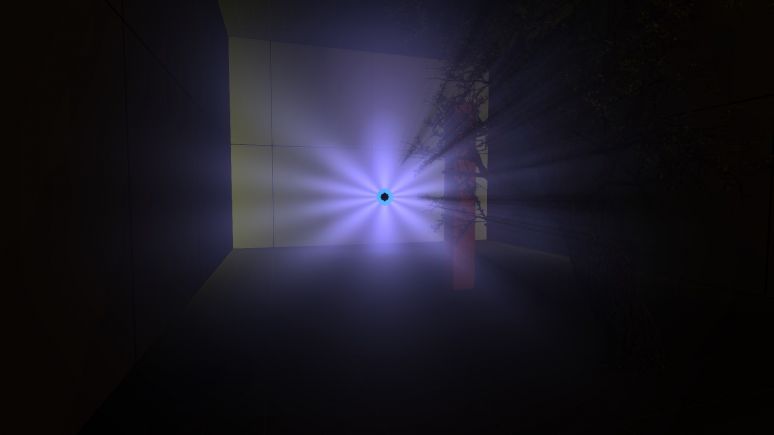
[[File:NewLight_PointMain.jpg|720px||thumb|right|NewLight_Point in {{code|End Game}} chapter (used for the portal).]]  
{{Note|You can have only 512 point light entities placed in the map editor.}}


==Keyvalues==
==Keyvalues==
{{KV|Name|intn=targetname|target_source|The name that other entities refer to this entity by.}}
{{KV Targetname}}
{{KV|Parent|intn=parentname|target_destination|The name of this entity's parent in the movement hierarchy. Entities with parents move with their parent.}}
{{KV|Pitch Yaw Roll (Y Z X)|intn=angles|angle|nofgd=1|This entity's orientation in the world. Pitch is rotation around the Y axis, yaw is the rotation around the Z axis, roll is the rotation around the X axis.
{{KV|Pitch Yaw Roll (Y Z X)|intn=angles|angle|nofgd=1|This entity's orientation in the world. Pitch is rotation around the Y axis, yaw is the rotation around the Z axis, roll is the rotation around the X axis.}}
:{{note|There is almost no differences if you're using point light with no texture. Things changes if you're using textures.}}
{{Important|Have huge differences if you use texture for your {{ent|newLight_Point}}.}}
{{KV|Enabled|intn=Enabled|Choices|Enable/Disable this Entity.
Determines if the light is off at level start.
*0: Enabled
*1: Disabled}}
{{KV|Appearance|intn=FlareStyle|Choices| 
{{Light appearances}}}}
{{KV|Light Color|intn=LightColor|color255|This is the color of the sunlight.
Determines color of light.}}
{{KV|Light Ambient Color|intn=LightColorAmbient|color255|This is the ambient color of the sunlight.
Determines color of shadows that light source creates.}}
{{expand|title=Examples|
<br>
<gallery mode=packed heights=500px>
File:ShadowC1.png| thumb | left | 510px | 0 0 0
File:ShadowC2.png| thumb | left | 510px | 255 0 0
File:ShadowC3.png| thumb | left | 510px | 255 128 128
</gallery>
}}
}}
{{KV|Light Intensity|intn=Intensity|float|RGB * Intensity.
{{KV BmNewLightOldFalloff}}
Brightness of the light.}}
{{KV BmNewLightBaseMain}}
{{Note|With 0 will not draw, process and specular shader be disabled.}}
{{KV BmNewLightShadowMain}}
{{KV|SpecularMultiplier|intn=SpecMultiplier|float|0 to 1 RGB * Intensity * SpecularMultiplier.
{{KV BmNewLightShadowFace}}
Brightness of the specular shader from this light source.}}
{{KV BmNewLightShadowBias}}
{{expand|title=Examples|
{{KV BmNewLightCookieMain}}
<br>
{{KV|LightnGodRayMode|intn=LightnGodRayMode|choices|This determines what effects will be available to use for the light source. Keep in mind that the default choice is Light.
<gallery mode=packed heights=500px>
:*0: Light - light only.
File:BS IN1.png| thumb | left | 510px | SpecularMultiplier - 1
:*1: Godrays - godrays only.
File:BS IN10.png| thumb | left | 510px | SpecularMultiplier - 10
:*2: Both Light and GodRays - both light and godrays.
File:BS IN20.png| thumb | left | 510px | SpecularMultiplier - 20
:{{bug|hidetested=1|Even if godrays is turned off, the game will still think that the godrays is used if choice is <code>Godrays</code> or <code>Both Light and GodRays</code>.}}
</gallery>
}}
}}
{{KV|Range|intn=Range|float|Range.
{{KV BmGodraysNormal}}
How far the light source illuminates. Measured in Hammer Units.}}
{{KV BmGodraysFancy}}
{{Important|It greatly affects optimization, less is better.}}
{{KV BmNewLightShadowPasses‎}}
{{expand|title=Examples|
<br>
<gallery mode=packed heights=500px>
File:L1.png| thumb | left | 510px | Range - 150
File:L2.png| thumb | left | 510px | Range - 300
File:L3.png| thumb | left | 510px | Range - 500
</gallery>
}}
{{KV|Light Type|intn=LightType|choices|
Determines the light type.
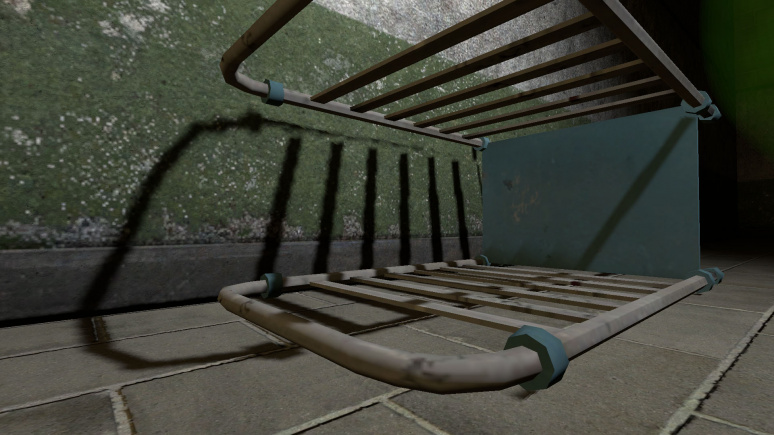
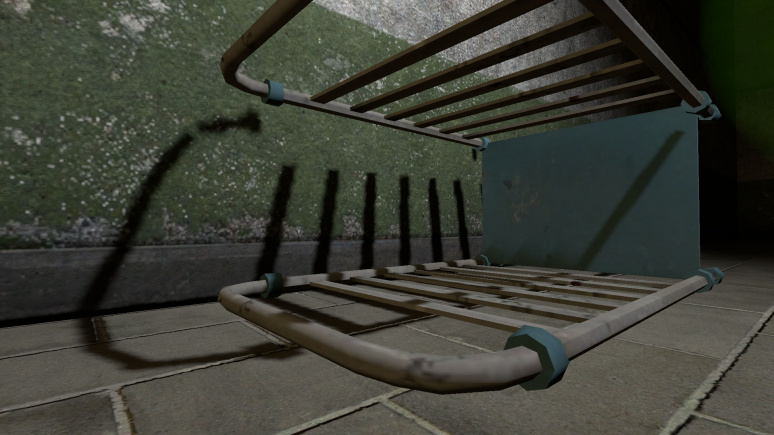
*0: Static - shadows are cast only by static objects ([[prop_static]], geometry, etc.). Lighting does not update if it has parent (use if part scene has no large moving parts, or shadow accuracy is not important).
*1: Stationary - shadows are cast by static and dynamic objects, lighting does not update if it has a parent. {{Important|Shadows for dynamic props update, but not dynamic geometry!}}
*2: Dynamic - shadows are cast by static and dynamic objects, lighting updates if it does have a parent. This light is quite expensive, and should only be used for moving light sources, and if your scene have moving geometry.}}
{{expand|title=Examples|
<br>
<gallery mode=packed heights=420px>
File:B-1.gif|| thumb | left | 510px | Light Type - Static
File:B0.gif| thumb | left | 510px | Light Type - Stationary
File:B1.gif| thumb | left | 510px | Light Type - Dynamic
</gallery>
}}
{{KV|HasShadow|intn=HasShadow|choices|Do you want this light to have shadows?
Determines whether the light source will cast shadows. Remember that default choices is No.
*0: No
*1: Yes}}
{{expand|title=Examples|
<br>
<gallery mode=packed heights=410px>
File:BM NO.png| thumb | left | 510px | Has Shadow - NO
File:BM YES.png| thumb | left | 510px | Has Shadow - YES
</gallery>
}}
{{Note| Shadows are cast and update even with closed [[areaportals]].}}
{{expand|title=Examples|
<br>
<gallery mode=packed heights=710px>
File:Black Mesa Screenshot 2023.10.23 - 19.02.36.87.png| thumb | left | 510px | 
</gallery>
}}
{{KV|ShadowMapLOD|intn=ShadowLod|choices|Resolution of ShadowMap used by this light.
Determines quality of shadows. 1024 is very expensive, use it only in places where it's really needed, in most cases 512 is good alternative. 256 produces the blurriest shadows, but it is also the cheapest.
*0: 256
*1: 512
*2: 1024}}
{{expand|title=Examples|
<br>
<gallery mode=packed heights=500px>
File:LOD256.png| thumb | left | 510px | 256
File:LOD512.png| thumb | left | 510px | 512
File:LOD1024.png| thumb | left | 510px | 1024
</gallery>
}}
{{Important|In one level you can have only 8 light spot/points with shadows which use one and same shadow lod, even if you don't use all them simultaneously. If this limit is not respected - 9-th and next lights will not cast shadows. However - you can rise up this limit with {{ent|point_template}}, just kill past lights with kill input and spawn new when you need it. Also use different shadow lods.}}
{{KV|ShadowFaceX|intn=ShadowFaceX|choices|Shadow Enabled for this Face ?
Determines whether the given side lighting will display shadows.
*0: Enabled
*1: Disabled}}
{{KV|ShadowFaceX_Minus|intn=ShadowFaceX_Minus|choices|Shadow Enabled for this Face ?
Determines whether the given side lighting will display shadows.
*0: Enabled
*1: Disabled}}
{{KV|ShadowFaceY|intn=ShadowFaceY|choices|Shadow Enabled for this Face ?
Determines whether the given side lighting will display shadows.
*0: Enabled
*1: Disabled}}
{{KV|ShadowFaceY_Minus|intn=ShadowFaceY_Minus|choices|Shadow Enabled for this Face ?
Determines whether the given side lighting will display shadows.
*0: Enabled
*1: Disabled}}
{{KV|ShadowFaceZ|intn=ShadowFaceZ|choices|Shadow Enabled for this Face ?
Determines whether the given side lighting will display shadows.
*0: Enabled
*1: Disabled}}
{{KV|ShadowFaceZ_Minus|intn=ShadowFaceZ_Minus|choices|Shadow Enabled for this Face ?
Determines whether the given side lighting will display shadows.
*0: Enabled
*1: Disabled}}
{{KV|NearZ|intn=NearZ|float|NearZ used by shadowmap camera for this light.
Determines distance at which light source will cast shadows.}}
{{KV|DepthBias|intn=DepthBias|float|DepthBias - Offset added to depth values in shadowmaps.}}
{{KV|SlopeDepthBias|intn=SlopeDepthBias|float|Slope Depth Bias - For surfaces having aliasing due to steep angles with light}}.
{{KV|NormalBias|intn=NormalBias|float|While rendering objects into shadow maps, each vertex will be moved along -ve Normal direction, giving it an appearance of shrinking while rendering to shadow maps. This property determines the amount of Units to be moved. Helps with shadow aliasing.}}
{{expand|title=Examples|
<br>
<gallery mode=packed heights=500px>
File:NB1.png| thumb | left | 510px | NormalBias - 1
File:NB2.png| thumb | left | 510px | NormalBias - 5
File:NB3.png| thumb | left | 510px | NormalBias - 10
</gallery>
}}
{{bug|Numbers lower than 0.8 can cause huge graphics problems.}}
{{expand|title=The bug example|
<br>
<gallery mode=packed heights=720px>
File:NormalBiasBug.gif| frame | NormalBias - 0
</gallery>
}}
{{KV|ShadowRadius|intn=ShadowRadius|float|Radius of shadow edges for soft shadows. If its value is negative, code will auto assign a value depending on shadowlod. These code based values can be adjusted via convars nr_shadow_rad_High,nr_shadow_rad_Med and nr_shadow_rad_Low.}}
Determines shadow blur. Low numbers are expensive to render.
{{expand|title=Examples|
<br>
<gallery mode=packed heights=500px>
File:BLUR1.png| thumb | left | 510px | ShadowRadius - 0.0001
File:BLUR2.png| thumb | left | 510px | ShadowRadius - 1
File:BLUR3.png| thumb | left | 510px | ShadowRadius - 5
</gallery>
}}
{{KV|Enable Texture Light|intn=bTexLight|choices|Enable Texture Ligh.
Determines whether the given light source uses .vtf texture from game files (just like {{ent|env_projectedtexture}}). With NewLight_Point, this technically works like a cube. A great example is the batteries that use lights/lightcookie_battery.vtf.
*0: Disabled
*1: Enabled}}
{{expand|title=Examples|
<br>
<gallery mode=packed heights=410px>
File:TEDisabled.png |Disabled
File:TEEnabled.png |Enabled
File:lightcookie battery.png |Texture that use batteries.
</gallery>
}}
{{Note|One of the most expensive features, use wisely. If shadows enabled - it can work with lags even with powerful PC.}}
{{KV|Texture name for TexLight|intn=texName|string|Texture name for Texture shadows.
Determines which texture will use light source. It use .vtf files, not .vmt.}}
{{KV|.Enable Prop Only Mode|intn=bNegLight|choices|Enable Prop Only Mode.
{{todo|Document what it does.}}
*0: Disabled
*1: Enabled}}
{{KV|LightnGodRayMode|intn=LightnGodRayMode|choices|0:Light 1:Godrays 2:Both Light and GodRays.
*0: Light
*1: Godrays
*2: Both Light and GodRays}}
{{expand|title=Examples|
<br>
<gallery mode=packed heights=500px>
File:GAL1.png| thumb | left | 510px | LightnGodRayMode - Light
File:GAL2.png| thumb | left | 510px | LightnGodRayMode - Godrays
File:GAL3.png| thumb | left | 510px | LightnGodRayMode - Both Light and GodRays
</gallery>
}}
{{KV|EnableGodRays|intn=EnableGodRays|choices|Enable GodRays.
Determines whether godrays are enabled or not at map start.
*0: Disabled
*1: Enabled}}
{{warning|You can have only 40 point lights with godrays enabled simultaneously, otherwise game will crash with this error message.}}
<br>
<gallery mode=packed heights=180px>
File:RaysLimit.png| thumb | left | 510px | If you'll try to enable forty-first light point with enabled Godrays.
</gallery>
{{note|Godrays are draw and process even with closed [[areaportals]].}}
{{expand|title=Example|
<br>
<gallery mode=packed heights=710px>
File:RaysDraw.png| thumb | left | 510px | 
</gallery>
}}
{{KV|Density|intn=Density|float|Density Controls the length of rays/volumetric shadows. 1.0 should work in 99% cases. Good values to start from: 0.5 to 1.5.}}
{{expand|title=Examples|
<br>
<gallery mode=packed heights=410px>
File:DEN1.gif| thumb |Density - 1.0
File:DEN2.gif| thumb |Density - 2.0
File:DEN3.gif| thumb |Density - 0.5
</gallery>
}}
{{KV|Weight|intn=Weight|float|Weight Controls the intensity of volumetric shadow. Blocking of rays by geometry. Good values to start from: 0.1 - 10.0.}}
{{expand|title=Examples|
<br>
<gallery mode=packed heights=410px>
File:WEI10.gif| thumb |Weight - 1.0
File:WEI2.gif| thumb |Weight - 2.0
File:WEI3.gif| thumb |Weight - 5.0
</gallery>
}}
{{KV|Decay|intn=Decay|float|Decay NOT being used.}}
{{todo|Document what does it change.}}
{{KV|Exposure|intn=Exposure|float|Exposure Controls the intensity of Rays during blending pass with main scene. 2.0 is a good start. Good values are 1.0 - 10.0.}}
{{expand|title=Examples|
<br>
<gallery mode=packed heights=710px>
File:EXP1.png| thumb |Exposure - 1.00
File:EXP2.png| thumb |Exposure - 10.0
File:EXP3.png| thumb |Exposure - 0.10
</gallery>
}}
{{KV|DistFactor|intn=DistFactor|float|DistFactor Controls the falloff of rays / length. 1.0f is a good starting value increase or decrease in the increments of 0.1. 0.0 will make the rays dissappear only disk will be rendererd.}}
{{expand|title=Examples|
<br>
<gallery mode=packed heights=410px>
File:DIST1.gif| thumb |DistFactor - 1.00
File:DIST2.gif| thumb |DistFactor - 10.0
File:DIST3.gif| thumb |DistFactor - 50.0
</gallery>
}}
{{KV|DiskRadius|intn=DiskRadius|float|Radius of Disk/circle of sun in texturespace. 1.0 will be full screen 0.5 is half screen etc.}}
{{expand|title=Examples|
<br>
<gallery mode=packed heights=710px>
File:DISKR1.png| thumb |DiskRadius - 0.02
File:DISKR2.png| thumb |DiskRadius - 0.10
File:DISKR3.png| thumb |DiskRadius - 1.00
</gallery>
}}
{{Note|With 0 - will not render.}}
{{KV|ColorInner|intn=ColorInner|color255| This is the color of the inner circle.}}
{{expand|title=Examples|
<br>
<gallery mode=packed heights=710px>
File:CRAYS1.png| thumb |255 0 0 255
File:CINN2.png| thumb |0 255 0 255
File:CINN3.png| thumb |0 0 255 255
</gallery>
}}
{{Note|Unlike lighting - brightness of inner depends on fourth number which can be written here.}}
{{KV|ColorRays|intn=ColorRays|color255| This is the color of the rays.}}
{{expand|title=Examples|
<br>
<gallery mode=packed heights=710px>
File:CRAYS1.png| thumb |0 0 255 120
File:CRAYS2.png| thumb |0 255 0 120
File:CRAYS3.png| thumb | 255 0 0 120
</gallery>
}}
{{Note|Unlike lighting - brightness of rays depends on fourth number which can be written here.}}
{{KV|GodRaysType|intn=GodRaysType|choices|GodRaysType.
*0: Normal
*1: Fancy}}
{{expand|title=Examples|
<br>
<gallery mode=packed heights=710px>
File:GodRaysTypeNormalAlt.png| thumb | Normal
File:GodRaysTypeFancyAlt.png| thumb | Fancy
</gallery>
}}
{{KV|DiskInnerSizePercent|intn=DiskInnerSizePercent|float|Used only in Fancy Gaphics Mode. Disk inner circle radius [[=]] DiskRadius * DiskInnerSizePercent.}}
{{expand|title=Examples|
<br>
<gallery mode=packed heights=710px>
File:DISKIR1.png| thumb |DiskInnerSizePercent - 0.75
File:DISKIR2.png| thumb |DiskInnerSizePercent - 0.50
File:DISKIR3.png| thumb |DiskInnerSizePercent - 0.99
</gallery>
}}
{{Note|With 0 - will not render.}}
{{KV|ColorOuter|intn=ColorOuter|color255|Used only in Fancy Mode. This is the color of the outer circle.}}
{{expand|title=Examples|
<br>
<gallery mode=packed heights=710px>
File:CRAYS1.png| thumb |0 255 0 255
File:COUT2.png| thumb |255 0 0 255
File:COUT3.png| thumb |0 0 255 255
</gallery>
}}
{{Note|Unlike lighting - brightness of outer depends on fourth number which can be written here.}}
{{KV|Ell_FR_ConstA|intn=Ell_FR_ConstA|float| }}
{{Note|For fancy Godrays only.}}
{{expand|title=Examples|
<br>
<gallery mode=packed heights=500px>
File:Ell_FR_ConstA1.png| thumb | left | 510px | 0.9
File:Ell_FR_ConstA2.png| thumb | left | 510px | 5
File:Ell_FR_ConstA3.png| thumb | left | 510px | 10
</gallery>
}}
{{KV|Ell_FR_ConstB|intn=Ell_FR_ConstB|float| }}
{{Note|For fancy Godrays only.}}
{{expand|title=Examples|
<br>
<gallery mode=packed heights=500px>
File:Ell_FR_ConstB1.png| thumb | left | 510px | 0.1
File:Ell_FR_ConstB2.png| thumb | left | 510px | 1
File:Ell_FR_ConstB3.png| thumb | left | 510px | 10
</gallery>
}}
{{KV|EEll_SR_ConstA|intn=EEll_SR_ConstA|float| }}
{{KV|EEll_SR_ConstB|intn=EEll_SR_ConstB|float| }}
{{KV|Ell_RRF_ConstA|intn=Ell_RRF_ConstA|float| }}
{{Note|For fancy Godrays only.}}
{{expand|title=Examples|
<br>
<gallery mode=packed heights=500px>
File:Ell_RRF_ConstA1.png| thumb | left | 510px | 0.9
File:Ell_RRF_ConstA2.png| thumb | left | 510px | 1.5
File:Ell_RRF_ConstA3.png| thumb | left | 510px | 42
</gallery>
}}
{{KV|Ell_RRF_ConstB|intn=Ell_RRF_ConstB|float| }}
{{Note|For fancy Godrays only.}}
{{expand|title=Examples|
<br>
<gallery mode=packed heights=500px>
File:Ell_RRF_ConstB1.png| thumb | left | 510px | 0.1
File:Ell_RRF_ConstB2.png| thumb | left | 510px | 0.7
File:Ell_RRF_ConstB3.png| thumb | left | 510px | 5.0
</gallery>
}}
{{KV|RotSpeed|intn=RotSpeed|float|}}
Determines rotating speed of fancy rays, 0 - don't rotate, negative number - will rotate to left.
{{Note|For fancy Godrays only.}}
{{expand|title=Examples|
<br>
<gallery mode=packed heights=500px>
File:RS1.gif| thumb | left | 510px | RotSpeed - 3.14
File:RS2.gif| thumb | left | 510px | RotSpeed - 0
File:RS3.gif| thumb | left | 510px | RotSpeed - 40
</gallery>
}}
{{KV|RotPatternFreq|intn=RotPatternFreq|float|}}
Determines count of fancy rays in frame, with negative number will deny RotSpeed +/- effect.
{{Note|For fancy Godrays only.}}
{{expand|title=Examples|
<br>
<gallery mode=packed heights=500px>
File:RPF1.gif| thumb | left | 510px | RotPatternFreq - -40
File:RPF2.gif| thumb | left | 510px | RotPatternFreq - -40
</gallery>
}}
{{KV|RenderInWorldSpace|intn=m_bEnableWorldSpace|choices|
Disables disks if this enabled.
*0: Disabled
*1: Enabled}}
{{KV|m_fAlphaDiskInner|intn=m_fAlphaDiskInner|float|}}
{{KV|m_fAlphaDiskOuter|intn=m_fAlphaDiskOuter|float| }}
{{KV|UseToneMapRays|intn=m_bUseToneMapRays|choices|
*0: Enabled
*1: Disabled}}
{{KV|UseToneMapDisk|intn=m_bUseToneMapDisk |choices|
*0: Enabled
*1: Disabled}}
{{KV|ShadowPass_Brush|intn=m_bSRO_Brush|choices|Do we want to Render Brushes in shadow passes for this light?
*0: YES
*1: NO}}
{{KV|ShadowPass_StaticProp|intn=m_bSRO_StaticProp|choices|Do we want to Render StaticProps in shadow passes for this light?
*0: YES
*1: NO}}
{{KV|ShadowPass_DynProp|intn=m_bSRO_DynProp|choices|Do we want to Render Dynamic Props in shadow passes for this light?
*0: YES
*1: NO}}
{{KV|ShadowPass_AlphaTest|intn=m_bSRO__Trans|choices|Do we want to Render AlphaTested Objects in shadow passes for this light?
*0: YES
*1: NO}}


==Inputs==
==Inputs==
{{IO|SetColorLight|<color255>. Change Light's Color value. Doesnt effect the godrays}}
{{I|SetColorLight|param=color255|Change light's color value. Doesn't affect the godrays.}}
{{IO|SetIntensityForLight|<float>. Change Light's intensity value. Doesnt effect the godrays}}
{{I|SetIntensityForLight|param=float|Change light's intensity value. Doesn't affect the godrays.}}
{{IO|TurnOnGodRays|Turn the Godrays on.}}
{{I|TurnOnGodRays|param=void|Turn the godrays on.}}
{{IO|TurnOffGodRays|Turn the Godrays off.}}
{{I|TurnOffGodRays|param=void|Turn the godrays off.}}
{{IO|TurnOn|Turn the light on.}}
{{I|TurnOn|param=void|Turn the light on.}}
{{IO|TurnOff|Turn the light off.}}
{{I|TurnOff|param=void|Turn the light off.}}
{{IO|Toggle|Toggle the light's current state.}}
{{I|Toggle|param=void|Toggle the light's current state.}}
{{I BaseEntity}}
 
==Outputs==
{{O BaseEntity|}}
 
==Issues==
====Deferred lighting incorrect work with [[$translucent]]====
Deferred lighting all time rendering through walls with [[material]] [[shader]] parameter [[$translucent]]. This happen because of game can't tell the depth of scene because of the transparency, what you are see in the picture is just the lighting layer applied to the color of transparency texture.
<br>
<gallery mode=packed heights=410px>
File:BugHah.png| frame | No [[$translucent]]. Behind the wall placed lighting and some models with small room.
File:BugDamn.png| frame | With [[$translucent]]. Now player see everything, but only what lighted.
</gallery>
<br>
<gallery mode=packed heights=410px>
File:GargHah1.png| frame | Scene behide window. Looks like the gargantua has lost its texture and turned white.
File:GargDamn1.png| frame | Scene out window. This is what should see player.
</gallery>
This problem also applies to brushes which not have [[$translucent]], but which parented to brushes that have this parameter. Similar will happen if brush with [[$translucent]] is part of your brush entity.
<br>
<gallery mode=packed heights=410px>
File:BSFL1.png| frame | This sticker is brush parented to the glass. Flashlight off.
File:BSFL2.png| frame | This sticker is brush parented to the glass. Flashlight on.
</gallery>
Same will happen if you use [[overlays]]/[[decals]] on brushes with [[$translucent]].
<br>
<gallery mode=packed heights=410px>
File:MS1.png| frame | Metal speaker is overlay that use [[$alphatest]], but lighting of the health charger visible anyway, because overlay pasted on the transparency window.
</gallery>
This issues not happen if replace [[LightmappedGeneric]] to [[ShatteredGlass]] shader. [[ShatteredGlass]] give similar to [[LightmappedGeneric]] results, so, you can use it for glass or transparency surfaces when it's needed.
<br>
<gallery mode=packed heights=410px>
File:HahF1.png| frame | [[LightmappedGeneric]].
File:HahF2.png| frame | [[ShatteredGlass]].
</gallery>
In some cases use [[$alphatest]] if it'll give similar to [[$translucent]] resualts, with this your surface also will cast dynamic shadows.
<br>
<gallery mode=packed heights=410px>
File:AF1.png| frame | [[$translucent]].
File:AF2.png| frame | [[$alphatest]].
</gallery>
====Deferred lighting incorrect work with [[$alphatestreference]] and [[$allowalphatocoverage]]====
[[$alphatestreference]] is a [[material]] [[shader]] parameter that specifies the threshold alpha channel value at which the surface should be transparent instead of opaque, default "0.5". [[$allowalphatocoverage]] creates translucent steps based on alpha values. Both have one and same problems with deferred lighting.
For examples used this texture with this alpha channel.
<br>
<gallery mode=packed heights=410px>
File:ATSC_D.png| frame | Diffuse texture.
File:ATSC_A.png| frame | Alpha channel.
</gallery>
Here deferred lighting placed behind wall with the texture, lighting is red and shadows is blue. We can see the circle part of that have alpha channel part which is invisible due to $alphatest, with enabled deferred lighting we see that the invisible part doesn't show through itself deferred lighting with shadows.
<br>
<gallery mode=packed heights=410px>
File:ODSL_1.png| frame | Dynamic light disabled behind wall with the texture, using standart VRAD light.
File:ODSL_2.png| frame | Dynamic light enabled behind wall with the texture, not using standart VRAD light.
</gallery>
From the opposite side the invisible part illuminates everything in itself equally, without taking into account decay of light, it's also don't show shadows and other dynamic lights in itself.
<br>
<gallery mode=packed heights=410px>
File:IIPSEE_.png| frame | Dynamic light disabled, using standart VRAD light.
File:IIPSEE.png| frame | Dynamic light enabled, not using standart VRAD light.
</gallery>
If use very low numbers you will see resualts like in the pictures.
<br>
<gallery mode=packed heights=410px>
File:CCCC_11.png| frame | Dynamic light disabled, using standart VRAD light.
File:CCCC_12.png| frame | Dynamic light enabled, not using standart VRAD light.
</gallery>
<br>
<gallery mode=packed heights=410px>
File:CCCC_21.png| frame | Dynamic light disabled, using standart VRAD light.
File:CCCC_22.png| frame | Dynamic light enabled, not using standart VRAD light.
</gallery>
You can't escape this problem, only minimize effect with <code>$alphatestreference 0.1</code> or if paint alpha correct channel.
====Godrays incorrect work with [[$alphatestreference]] and [[$allowalphatocoverage]]====
Godrays process invisable parts, you can't escape this problem, only minimize effect with <code>$alphatestreference 0.1</code> or if paint alpha correct channel.
<br>
<gallery mode=packed heights=710px>
File:GIWTAAA.png| frame | An example.
</gallery>
You can't escape this problem, only minimize effect with <code>$alphatestreference 0.1</code> or if paint alpha correct channel.
====Godrays incorrect work with [[$translucent]]====
Godrays (also disk) all time fully rendering through textures with [[material]] [[shader]] parameter [[$translucent]], because of this you will see unexpected results like in the picture. Disable Godrays when you need or use [[$alphatest]] if it'll give resualts similar to [[$translucent]]. You also can try use some other tricks to escape this problem.
<br>
<gallery mode=packed heights=410px>
File:GodraysTransBug.png| frame | Bug example in bm_c1a3c.
File:GodraysTransBugSide.png| frame | Sign from other side.
</gallery>
====Godrays draw through water====
Deferred lighting don't fully draw through water, unlike Godrays.
<br>
<gallery mode=packed heights=710px>
File:c3m0c.png| frame | Black Mesa: Blue Shift - bs_c3m0c.
</gallery>
====Godrays may leak in some cases====
Due to way Godrays works, in some cases they can be drawn through walls, appearing where they should not be visible at all. Disable rays with triggers or minimize effect.
<br>
<gallery mode=packed heights=710px>
File:bmsleak(Someone_from_Valve_please_allow_to_BM_devs_to_publish_the_game_code_to_make_possible_for_us_fix_this_bugs_please).gif| frame | An example.
</gallery>
====Godrays can't be displayed in monitors and reflections====
Godrays is post process effect that depends on player screen. That means that they can't water reflections or monitors can't show it.
<br>
<gallery mode=packed heights=410px>
File:GodraysInWater.png| frame | An example.
File:GodraysInMonitor.png| frame | An example.
</gallery>
====Weird clipping====
Often meeting strange clipping/flickering, strange phenomenon that also was in early stages of the game, this does not depend on OS or drivers, despite this there are rumors that this occurs most often among users of Linux. There is no known way to deal with this, most often happen with [[NewLight_Spot]].
<br>
<gallery mode=packed heights=410px>
File:WC1.gif| frame |One of many examples.
File:WC2.gif| frame |One of many examples.
File:WC3.gif| frame |One of many examples.
</gallery>
====Brush polygons may clip deferred lighting====
Rare phenomenon, sometimes brush polygons clip deferred lighting, the reason that cause this is unknown. Can be easy fixed if divide invalid brush into two parts.
<br>
<gallery mode=packed heights=410px>
File:BPl0.png| frame | One of examples (mat_wireframe 0).
File:BPl1.png| frame | One of examples (mat_wireframe 1).
</gallery>
<br>
<gallery mode=packed heights=410px>
File:BPb0.png| frame | One of examples (mat_wireframe 0).
File:BPb1.png| frame | One of examples (mat_wireframe 1).
</gallery>
====Shadows incorrect work with [[newLight_Point]] cube edges====
Because [[newLight_Point]] arу cube technically - we get shadows incorrect behavior with edges of this cube, this can sometimes lead to their serious distortion a.k.a. clipping. You only can minimize this if set shadow quality to maximum.
<br>
<gallery mode=packed heights=710px>
File:SIWENCE0.png| frame |One of many examples.
File:SIWENCE1.png| frame |One of many examples.
File:SIWENCE_2.png| frame |One of many examples.
</gallery>
====Deferred lighting shine through [[nodraw]] texture====
Not a bug, but a pattern. Unfortunately, this cannot be controlled in any way, you should keep in mind this before paint [[nodraw]] to escape situations like in the gifs. If your dynamic light source illuminates face that player never see - use cheap textures with low resolution and which don't use material shader parameters, a good solution would be dev textures.
<br>
<gallery mode=packed heights=410px>
File:SLB1.gif| frame | Black Mesa - bm_c2a2a.
File:SLB2.gif| frame | Black Mesa: Blue Shift - bs_c0m0c.
</gallery>
====Shadows don't appear immediately after reload====
After game save and load shadows don't appear for short time, maybe it has something to do with caching. This appearance duration may vary depending on power of user PC and how much of lights with enabled shadows are turned on at level, but in any case user will get this issue even with most powerful PC. Enable in [[worldspawn]] settings <code>Level Fade In</code> to hide this problem, this setting also will hide some other problems with loads that avaible in{{bms|4}}.
<br>
<gallery mode=packed heights=410px>
File:SDAIAR1.gif| frame | With no <code>Level Fade In</code>. It seems like the shadows flicker, which makes it unpleasant for eyes.
File:SDAIAR2.gif| frame | With <code>Level Fade In</code>. Everything looks fine.
</gallery>
====Shadows don't appear immediately with a lot of lights with shadows====
If your level use a lot of lights with shadows - shadows from enabling lights will not appear immediately, this happens if light source was disabled and if player's camera did not see this light source enabled initially. Can be fixed if enable light source at level start and keep it enabled before drawing of level allows player's camera to see this light source, disable this light source and than enable when we need this.
<br>
<gallery mode=packed heights=410px>
File:SDAIWALOLWS1.gif| frame | An example.
File:SDAIWALOLWS2.gif| frame | bm_c2a1a.
</gallery>
====Dynamic lights with shadows may buggy====
In some cases your attached lights may have buggy shadows if parent moving, work smart when use this feature. If your moving light is decoration - highly recommended to leave shadows disabled to save limits and performance.
<br>
<gallery mode=packed heights=410px>
File:DLWSMB1.gif| frame | An example.
File:DLWSMB2.gif| frame | bm_c1a1c.
</gallery>
====[[Viewmodel]] illuminated by deferred render draw in [[refract]] shader====
Refract shader and [[Water_(shader)|Water]] shader take and refract player screen space without taking into account viewmodel. However - viewmodel illuminated by deferred render draw in refract shader because of game can't tell the depth of viewmodel because of the transparency, what you are see in the pictures is just the lighting layer applied to the color of transparency texture.
<br>
<gallery mode=packed heights=710px>
File:DFS1Alt.png| frame |Clear example in test map, the hivehand illuminated by deferred render draw in the refract texture, plus it's completely discolored there..
File:DFS2.png| frame |Black Mesa - bm_c4a1a.
File:DFS3.png| frame |Black Mesa: Blue Shift - bs_c2m0a.
</gallery>
====Viewmodel doesn't support self-shadowing with deferred ligths====
Unlike cascade shadows - viewmodel doesn't support self-shadowing with deferred ligths. Not a bug, but this is not what you expect from real life, it also isn't so with [[env_projectedtexture]].
<br>
<gallery mode=packed heights=410px>
File:CSMSF.png| frame | Here you can see how one of gluon gun switches create shadow that fall on other part of gun.
File:DFSF.png| frame | Light spot illuminates gluon gun, but lighting just ignore viewmodel and fully shine through, although only the side of the gun should be light.
</gallery>
====Godrays and deferred lighting incorrect work with cloak====
Cloak is a material shader parameter for <code>VertexLitGeneric</code> shader, female assassins use it to make them transparent when they need it. Godrays all time fully render through them, same for deferred lighting.
<br>
<gallery mode=packed heights=410px>
File:ASSASINRAYS.png| frame | bm_c2a3c, the sun's rays are not cut off despite the fact that she is completely untransparent right now.
File:ASSASINDF.png| frame | bm_c2a3c, she is completely untransparent, but we still can see one of lighting layers.
</gallery>
====Godrays doesn't refract by refract shader and fully draw through====
Unlike deferred lighting Godrays doesn't refract by refract shader, also fully draw through.
<br>
<gallery mode=packed heights=710px>
File:AnGodexample.gif| frame |An example.
</gallery>
====Strange "holes" when player's camera is at a great distance====
In some cases may will appear strange "holes" when player's camera is at a great distance. Strange bug that occurs quite rarely, can be fixed if increase <code>NormalBias</code> number.
{{ModernConfirm|Does it happen with [[newLight_Spot]] ?}}
<br>
<gallery mode=packed heights=710px>
File:AnFuexample.gif| frame | Example in bm_c4a1b1, the green teleporter light source starts to glitch when player move certain distance.
</gallery>
<br>
<gallery mode=packed heights=410px>
File:BMSH_1.png| frame | Black Mesa, map bm_c4a1b1. NormalBias - 1.
File:BMSH_2.png| frame | Black Mesa, map bm_c4a1b1. NormalBias - 5.
</gallery>
<br>
<gallery mode=packed heights=410px>
File:BMOBSH_1.png| frame | Black Mesa: Black Ops - Restored, bmops_map_2. NormalBias - 0.5.
File:BMOBSH_2.png| frame | Black Mesa: Black Ops - Restored, bmops_map_2. NormalBias - 1.5.
</gallery>
====Weapons dynamic light incorrect work with damaged [[func_breakable_surf]]====
For some reason weapons dynamic light can illuminate damaged [[func_breakable_surf]] even if position of it very far from position of damaged [[func_breakable_surf]].
{{ModernConfirm|Is there a way to fix this?}}
<br>
<gallery mode=packed heights=710px>
File:AnSexample.gif| frame |An example.
</gallery>
====New lights don't work with [[3D Skybox]]====
Don't use new lights in your 3D skyboxes, none of them will work at all.
<br>
<gallery mode=packed heights=710px>
File:NLDW3DS.png| frame |An example. We see that deferred lighting and Godrays works fine, but 3D Skybox don't draw both.
</gallery>
====Motion blur blurring viewmodel lighting layer====
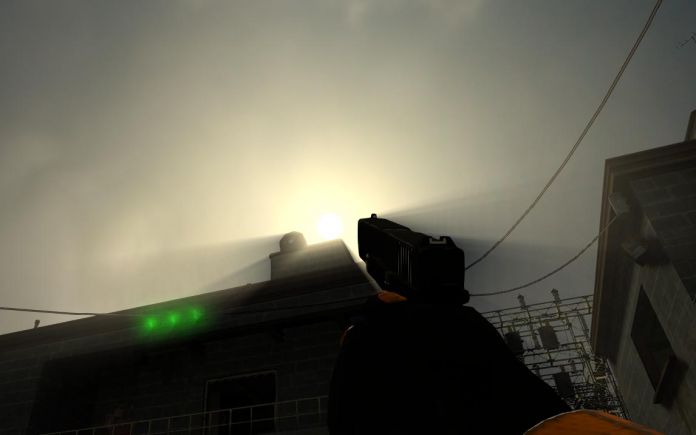
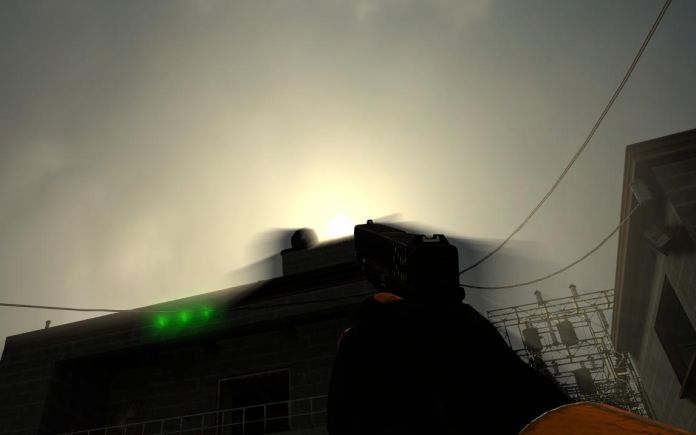
For some reason <code>Motion blur</code> blurring viewmodel lighting layer, you can notice this when you just rotate camera.
<br>
<gallery mode=packed heights=510px>
File: VLLBASU.gif| frame | An example.
</gallery>
 
== See Also ==
 
* {{ent|light_spot}}
* {{ent|env_lensflare}}
* {{ent|newLight_Dir}}
* [[Lighting]]
* [[Adding Light]]
* [[Intermediate Lighting]]
* [[Advanced Lighting]]
* [[Effect flags]] (dynamic light effects)
* [[Tool textures]] (for Block light)
* [https://chetanjags.wordpress.com/2023/07/18/blackmesa-xenengine-part-4-lighting-shadows/ BlackMesa XenEngine: Part 4 – Lighting & Shadows] (page from Black Mesa developer about new lights)
{{todo|Investigate and document some keyvalues and functions. Clean up english. Add more issues if you'll find.}}

Latest revision as of 07:57, 5 November 2025

Edit Tabs
NewLight Point.png

newLight_Point is a point entity available in Black Mesa Black Mesa. It creates an invisible deferred light source that shines in all directions, includes godrays and lightcookies.

C++ Class hierarchy
CNewLightPoint
CBaseEntity
NewLight_Point in End Game chapter (used for the portal).
Note.pngNote:You can have only 512 point light entities placed in the map editor.

Keyvalues

Name (targetname) <string>
The name that other entities refer to this entity by, via Inputs/Outputs or other keyvalues (e.g. parentname or target).
Also displayed in Hammer's 2D views and Entity Report.
See also: Generic Keyvalues, Inputs and Outputs available to all entities
Pitch Yaw Roll (Y Z X) (angles) <angle> !FGD
This entity's orientation in the world. Pitch is rotation around the Y axis, yaw is the rotation around the Z axis, roll is the rotation around the X axis.
Note.pngNote:There is almost no differences if you're using point light with no texture. Things changes if you're using textures.


Use old Falloff ? (bUseOldFallOff) <choices> !FGD Obsolete
Deprecated.
Sets old falloff state, disabled or enabled. This feature is disabled in the code, so you can't use old falloff (although it is still used for the flashlight).
  • 0: Disabled
  • 1: Enabled


Light Color (LightColor) <color255>
The RGB color of the light. Colors must be between 0 and 255.
Light Intensity (Intensity) <float>
Intensity/brightness of the light. It's RGB * intensity.
Note.pngNote:With 0 it will make the light disabled, including the effects. Doesn't affect shadows.
Note.pngNote:The default 8000 value is equivalent to default 200 brightness value for static VRAD lights. If needed to repeat static light brightness, multiple the brightness value by 40; if vice versa, divide by 40.
Range (Range) <float>
Range of the light, or how far the light source can illuminate. Measured in Hammer Units.
Warning.pngWarning:This is one of the parameters that affects performance in the game. Smaller values ​​allow you to process less geometry and save performance.
Icon-Important.pngImportant:Range is limited, the limit depends on intensity value. Do not use values ​​bigger than the intensity value allows.
Examples
Enabled (Enabled) <choices>
Sets light state on spawn, enabled or disabled.
  • 0: Enabled
  • 1: Disabled
Appearance (style) <integer choices>
Appearance presets.
Lightstyle presets (epilepsy warning)
Literal Value Description Sequence Preview
0 Normal m Lightstyle 0.png
10 Fluorescent flicker mmamammmmammamamaaamammma Lightstyle 10.gif
2 Slow, strong pulse abcdefghijklmnopqrstuvwxyzyxwvutsrqponmlkjihgfedcba Lightstyle 2.gif
11 Slow pulse, noblack abcdefghijklmnopqrrqponmlkjihgfedcba Lightstyle 11.gif
5 Gentle pulse jklmnopqrstuvwxyzyxwvutsrqponmlkj Lightstyle 5.gif
1 Flicker A mmnmmommommnonmmonqnmmo Lightstyle 1.gif
6 Flicker B nmonqnmomnmomomno Lightstyle 6.gif
3 Candle A mmmmmaaaaammmmmaaaaaabcdefgabcdefg Lightstyle 3.gif
7 Candle B mmmaaaabcdefgmmmmaaaammmaamm Lightstyle 7.gif
8 Candle C mmmaaammmaaammmabcdefaaaammmmabcdefmmmaaaa Lightstyle 8.gif
4 Fast strobe mamamamamama Lightstyle 4.gif
9 Slow strobe aaaaaaaazzzzzzzz Lightstyle 9.gif
12 Underwater light mutation mmnnmmnnnmmnn Lightstyle 12.gif
Tip.pngTip:Use new lights instead for lights with custom appearance, because static lightmapped lights reduces performance with this feature (especially near displacements).
Note.pngNote:Custom light styles are not possible.
Light Ambient Color (LightColorAmbient) <color255>
The RGB color of the shadows. Colors must be between 0 and 255.
Examples
SpecularMultiplier (SpecMultiplier) <float>
Specular multiplier. Sets intensity of new specular shader from this light source. It's RGB * Intensity * SpecularMultiplier. 0 means disabled.
Examples


falloffConstant (falloffConstant) <integer> !FGD Obsolete
Deprecated.
Constant value (can work only if old falloff is enabled).
falloffLinear (falloffLinear) <integer> !FGD Obsolete
Deprecated.
Linear value (can work only if old falloff is enabled).
falloffQuadratic (falloffQuadratic) <integer> !FGD Obsolete
Deprecated.
Quadratic value (can work only if old falloff is enabled).


Light Type (LightType) <choices>
Type of the light. This affects the behavior of the light source with parent, enable/disable dynamic models in shadowmaps, enable/disable static shadowmaps.
  • 0: Static - used only static shadowmaps, this means that shadows are cast only by static objects (prop_static, geometry, etc). Cannot move with parent.
Icon-Important.pngImportant:Brush entities and bmodels are also included in static shadowmaps and they never update (including func_physbox).
Note.pngNote:Static shadowmaps will update after save reload (only once).
  • 1: Stationary - the same as Static, but with dynamic shadows for dynamic models.
  • 2: Dynamic - lighting don't use static shadowmaps at all. It uses dynamic shadows for static objects and dynamic models. This type also can move with parent. This type is expensive, usually used for moving lights, but also can be used if you're getting issues due to static shadowmaps.
Examples
Note.pngNote:Note that shadow from metal box and grate box are flying on first and second pictures, that's because both was placed in air on map spawn. Doesn't happen on third picture, because the light updated shadow for both.
HasShadow (HasShadow) <choices>
Sets shadows state for the light, enabled or disabled. Remember that the default choices is No.
  • 0: No
  • 1: Yes
Examples
ShadowMapLOD (ShadowLod) <choices>
Resolution of shadowmap used by this light. This affects the quality of the shadows.
  • 0: 256
  • 1: 512
  • 2: 1024
Examples
Icon-Important.pngImportant:You cannot use any value from here an unlimited number of times. More information below.
ShadowRadius (ShadowRadius) <float>
Radius of shadow edges for soft shadows. If its value is negative, code will auto assign a value depending on ShadowLod. These code based values can be adjusted via convars nr_shadow_rad_High, nr_shadow_rad_Med and nr_shadow_rad_Low.
Examples
Tip.pngTip:Don't use very low values, because the shadows will look like stairs. Also don't use very high values, because the noise will spoil them a lot, or you'll see only noise.
NearZ (NearZ) <float>
NearZ used by shadowmap camera for this light. This is the distance at which the light source will start cast shadows.


ShadowFaceX (ShadowFaceX) <choices>
Sets shadow state (enabled or disabled) for X face.
  • 0: Enabled
  • 1: Disabled
ShadowFaceX_Minus (ShadowFaceX_Minus) <choices>
Sets shadow state (enabled or disabled) for -X face.
  • 0: Enabled
  • 1: Disabled
ShadowFaceY (ShadowFaceY) <choices>
Sets shadow state (enabled or disabled) for Y face.
  • 0: Enabled
  • 1: Disabled
ShadowFaceY_Minus (ShadowFaceY_Minus) <choices>
Sets shadow state (enabled or disabled) for -Y face.
  • 0: Enabled
  • 1: Disabled
ShadowFaceZ (ShadowFaceZ) <choices>
Sets shadow state (enabled or disabled) for Z face.
  • 0: Enabled
  • 1: Disabled
ShadowFaceZ_Minus (ShadowFaceZ_Minus) <choices>
Sets shadow state (enabled or disabled) for -Z face.
  • 0: Enabled
  • 1: Disabled


DepthBias (DepthBias) <float>
DepthBias is offset added to depth values in shadowmaps.
Examples


SlopeDepthBias (SlopeDepthBias) <float>
Slope Depth Bias used for surfaces having aliasing due to steep angles with light.
Examples
NormalBias (NormalBias) <float>
While rendering objects into shadowmaps, each vertex will be moved along -ve Normal direction, giving it an appearance of shrinking while rendering to shadowmaps. This property determines the amount of Units to be moved. Helps with shadow aliasing.
Examples
Note.pngNote:You will not see any changes if your material doesn't not provide bumpmap.
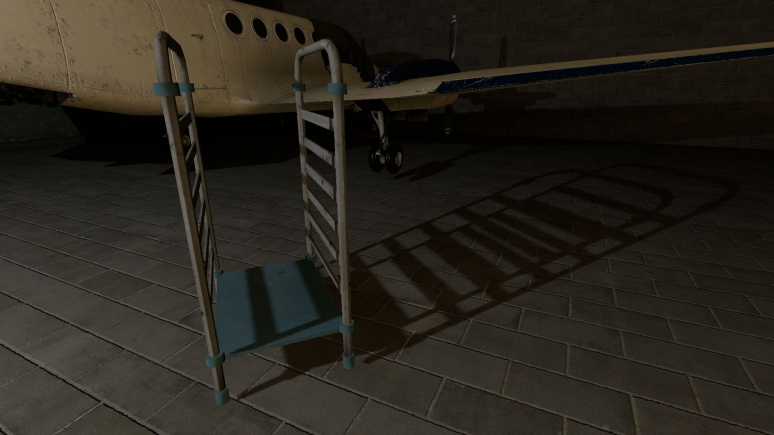
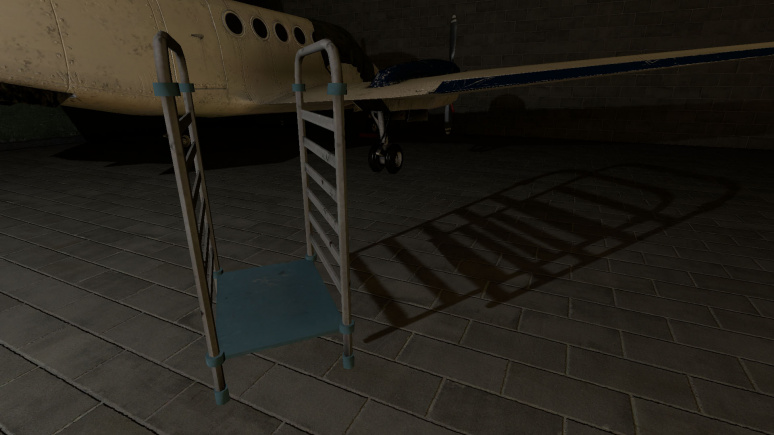
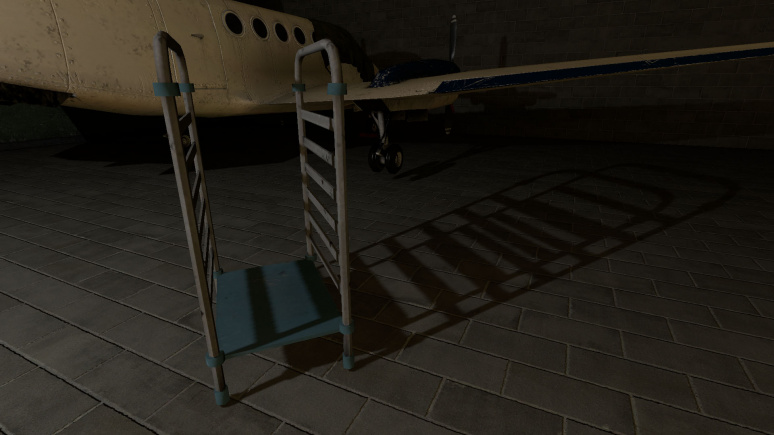
Icon-Important.pngImportant:Increasing this value will make shadows between different surfaces less accurate, greate example is third picture in examples, there you can see "two" shadows from railing.
Icon-Bug.pngBug:Numbers lower than 0.8 can cause huge graphics issues. Example.
Tip.pngTip:Increase this value if you are getting aliasing issues like this.


Enable Texture Light (bTexLight) <choices>
Sets lightcookie (texture lights) state, enabled or disabled.
  • 0: Disabled
  • 1: Enabled
Examples
Warning.pngWarning:This is one of the most expensive features, use wisely.
Texture name for TexLight (texName) <string>
Determines which texture will use the light source. Lightcookies are using .vtf (not .vmt) texture from files (just like env_projectedtexture).
.Enable Prop Only Mode (bNegLight) <choices> Obsolete
Deprecated.
Sets prop only mode, which supposed to disable shadows for world geometry. Doesn't work. The same effect can be achieved with shadow pass settings.
  • 0: Disabled
  • 1: Enabled
LightnGodRayMode (LightnGodRayMode) <choices>
This determines what effects will be available to use for the light source. Keep in mind that the default choice is Light.
  • 0: Light - light only.
  • 1: Godrays - godrays only.
  • 2: Both Light and GodRays - both light and godrays.
Icon-Bug.pngBug:Even if godrays is turned off, the game will still think that the godrays is used if choice is Godrays or Both Light and GodRays.


EnableGodRays (EnableGodRays) <choices>
Sets godrays state on spawn, enabled or disabled.
  • 0: Disabled
  • 1: Enabled
Warning.pngWarning:You can have only 40 point lights with godrays enabled simultaneously, otherwise the game will crash with this error message.
The error
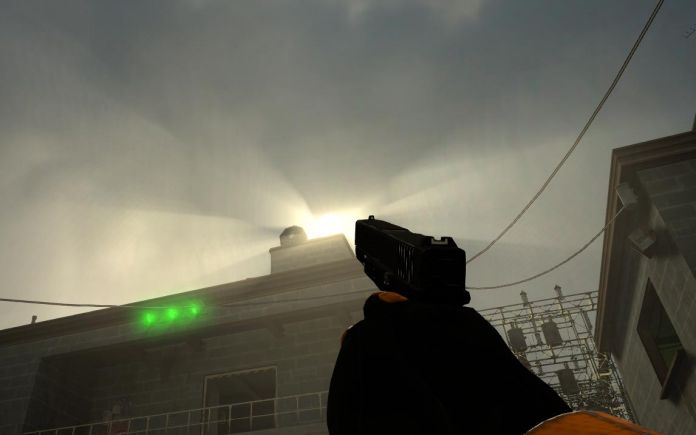
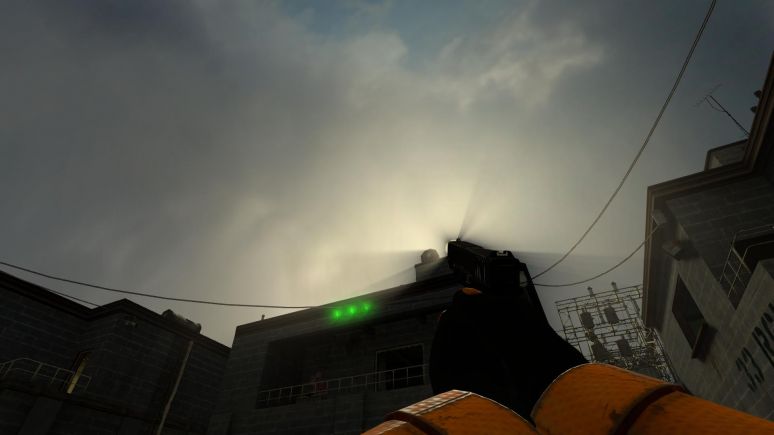
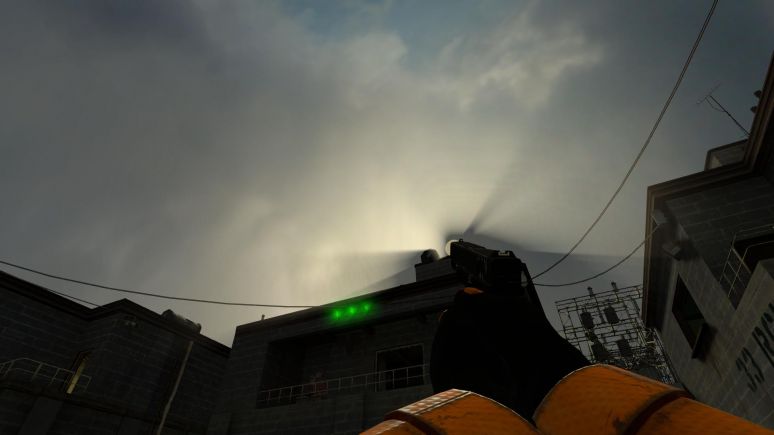
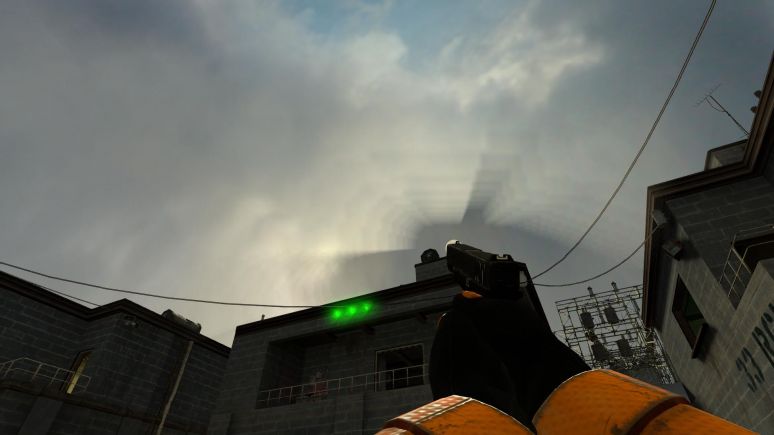
Density (Density) <float>
Density controls the length of rays/volumetric shadows. 1.0 should work in 99% cases. Good values are 0.5-1.5.
Examples
Weight (Weight) <float>
Weight controls the intensity of volumetric shadow. Blocking of rays by geometry. Good values are 0.1-10.
Examples
Decay (Decay) <float> Obsolete
Deprecated.
Decay controls luminance fall off per sample. Value here doesn't work.
Exposure (Exposure) <float>
Exposure controls the intensity of rays during blending pass with main scene. 2.0 is a good start. Good values are 1.0-10.0.
Examples


DistFactor (DistFactor) <float>
DistFactor controls the falloff of rays/length. 1.0 is a good starting value increase or decrease in the increments of 0.1. 0.0 will make the rays dissappear only disk will be rendererd.
Examples
Note.pngNote:Godrays doesn't look smooth if used big value here. The same for Exposure.
Example
ColorInner (ColorInner) <color255 + int>
The RGB color and brightness of the inner circle. Colors and brightness must be between 0 and 255.
Icon-Bug.pngBug:This color value doesn't work properly with newLight_Point if you are using Normal godrays type. This entity takes only red value. Works fine with Fancy type.
Examples
Note.pngNote:Rays is disabled on this picture (the colors are partially blending).
ColorRays (ColorRays) <color255 + int>
The RGB color and brightness of the rays. Colors and brightness must be between 0 and 255.
Examples
ColorOuter (ColorOuter) <color255 + int>
The RGB color and brightness of the outer circle. Colors and brightness must be between 0 and 255.
Icon-Bug.pngBug:This color value doesn't work properly with newLight_Point if you are using Normal godrays type. This entity takes only red value. Works fine with Fancy type.
Examples
Note.pngNote:Rays is disabled on this picture (the colors are partially blending).
Note.pngNote:You can't use black colors for ColorOuter, ColorInner and ColorRays.
DiskRadius (DiskRadius) <float>
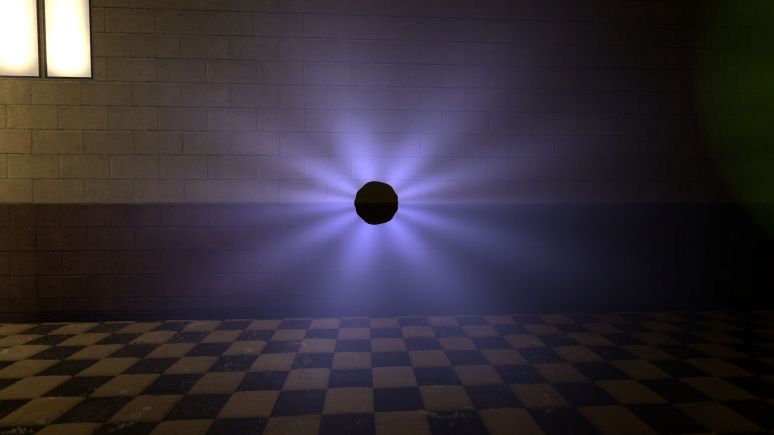
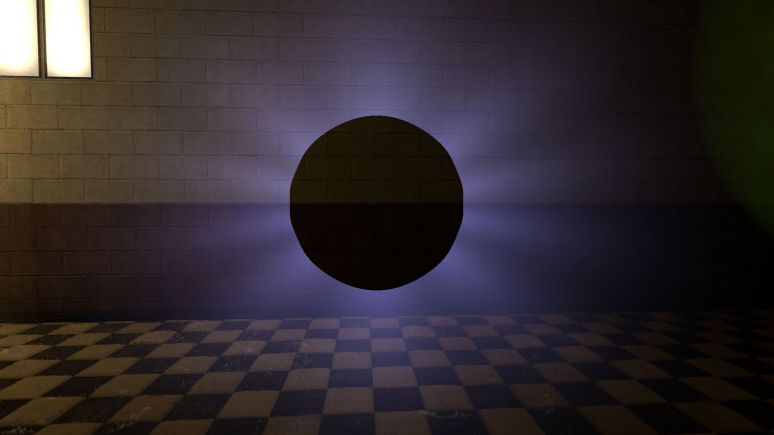
Radius of disk/circle of sun/point light in texturespace. 1.0 will be full screen, 0.5 is half screen, etc. 0 means don't render.
Examples
DiskInnerSizePercent (DiskInnerSizePercent) <float>
Disk inner circle radius is DiskRadius * DiskInnerSizePercent. 0 means don't render.
Examples
Note.pngNote:Rays is disabled on this picture (for clarity).


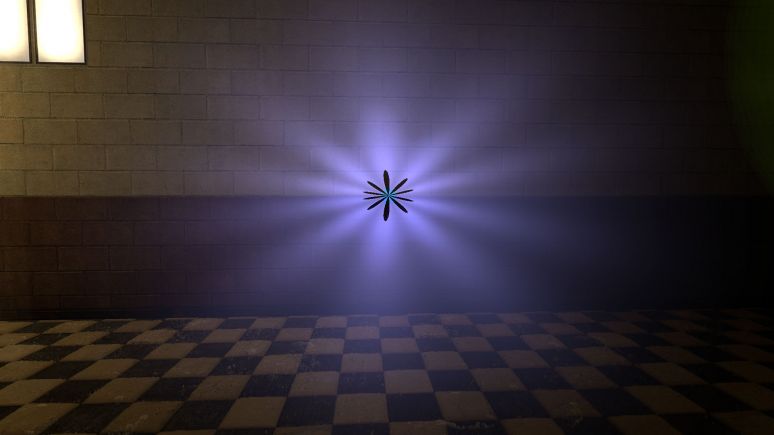
GodRaysType (GodRaysType) <choices>
Sets godrays type, normal or fancy.
  • 0: Normal
  • 1: Fancy
Examples
RenderInWorldSpace (m_bEnableWorldSpace) <choices>
Disables disks if this enabled.
  • 0: Disabled
  • 1: Enabled
Confirm:Does it affect anything else ?
Ell_FR_ConstA (Ell_FR_ConstA) <float>
This is fancy godrays disk size.
Examples
Ell_FR_ConstB (Ell_FR_ConstB) <float>
This is fancy godrays disk distortion.
Examples
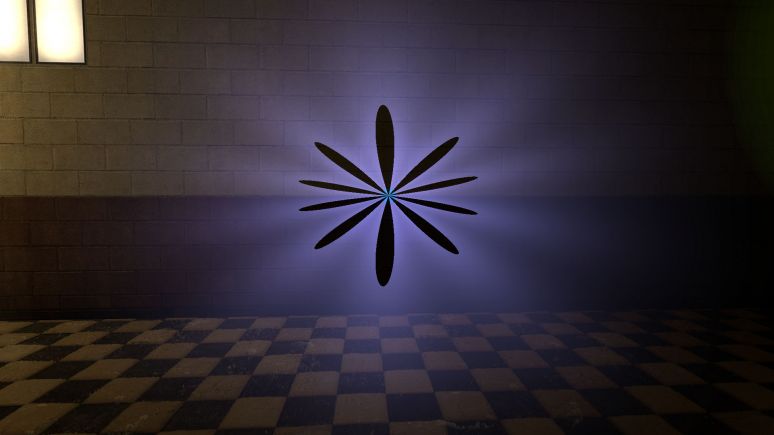
EEll_SR_ConstA (EEll_SR_ConstA) <float>
This is fancy godrays disk hole size.
Examples
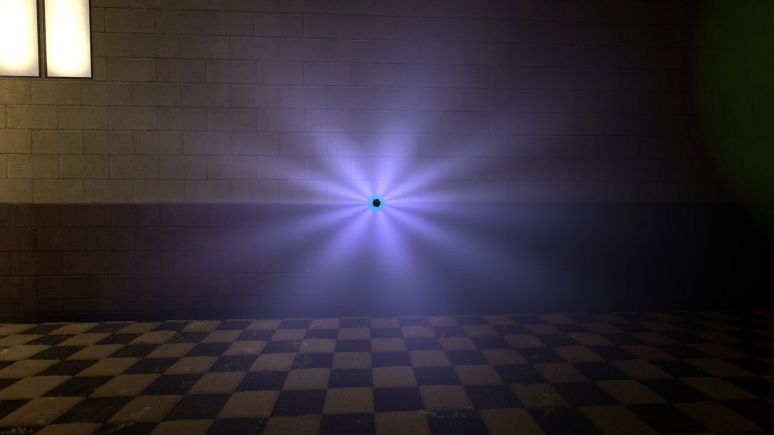
EEll_SR_ConstB (EEll_SR_ConstB) <float>
This is fancy godrays disk hole distortion.
Examples
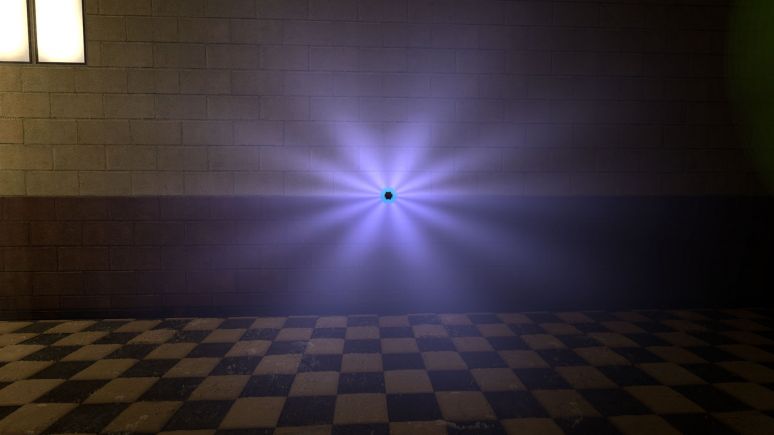
Ell_RRF_ConstA (Ell_RRF_ConstA) <float>
This is fancy godrays inner size.
Examples


Ell_RRF_ConstB (Ell_RRF_ConstB) <float>
This is fancy godrays inner distortion.
Examples
RotSpeed (RotSpeed) <float>
Rotating speed of fancy godrays, 0 means don't rotate, with negative number it will rotate to left. Examples (link to a video that showcase different values).
RotPatternFreq (RotPatternFreq) <integer>
Count of fancy godrays, with negative number will deny RotSpeed +/- effect. Examples (link to a video that showcase different values).
m_fAlphaDiskInner (m_fAlphaDiskInner) <float> Obsolete
Deprecated.
Alpha inner value for disk. Doesn't work.
m_fAlphaDiskOuter (m_fAlphaDiskOuter) <float> Obsolete
Deprecated.
Alpha outer value for disk. Doesn't work.
UseToneMapRays (m_bUseToneMapRays) <choices> Obsolete
Deprecated.
Sets tonemap state for rays, enabled or disabled. Doesn't work.
  • 0: Enabled
  • 1: Disabled
UseToneMapDisk (m_bUseToneMapDisk) <choices> Obsolete
Deprecated.
Sets tonemap state for disk, enabled or disabled. Doesn't work.
  • 0: Enabled
  • 1: Disabled


ShadowPass_Brush (m_bSRO_Brush) <choices>
Do we want to render world geometry in shadow passes for this light ? Doesn't affect bmodels.
  • 0: YES
  • 1: NO
ShadowPass_StaticProp (m_bSRO_StaticProp) <choices>
Do we want to render prop_static in shadow passes for this light ? This also affect bmodels.
  • 0: YES
  • 1: NO
ShadowPass_DynProp (m_bSRO_DynProp) <choices>
Do we want to render dynamic models in shadow passes for this light ?
  • 0: YES
  • 1: NO
ShadowPass_AlphaTest (m_bSRO__Trans) <choices>
Do we want to render models with transparency materials in shadow passes for this light ? Objects with transparency can cast shadows if your model includes a material without transparency.
  • 0: YES
  • 1: NO

Inputs

SetColorLight <color255RedirectInput/color32>
Change light's color value. Doesn't affect the godrays.
SetIntensityForLight <floatRedirectInput/float>
Change light's intensity value. Doesn't affect the godrays.
TurnOnGodRays <void>
Turn the godrays on.
TurnOffGodRays <void>
Turn the godrays off.
TurnOn <void>
Turn the light on.
TurnOff <void>
Turn the light off.
Toggle <void>
Toggle the light's current state.