
Customizing Gamepad UI: Difference between revisions
Jump to navigation
Jump to search
(Created page. Currently it's bare bones, needs more documentations, it's possible to customize them.) |
No edit summary |
||
| Line 5: | Line 5: | ||
== Scheme resource files == | == Scheme resource files == | ||
All files are located in {{path|<mod>\gamepadui}} folder. Open these files with any text editors (such as Windows Notepad, {{npp|1}}) to edit them. | All of these {{code|[[.res}]]} files are located in {{path|<mod>\gamepadui}} folder. Open these files with any text editors (such as Windows Notepad, {{npp|1}}) to edit them. | ||
* {{code|schemeachievement.res}} - Achievement page. | * {{code|schemeachievement.res}} - Achievement page. | ||
* {{code|schemechapterbutton.res}} - New game/select chapters. | * {{code|schemechapterbutton.res}} - New game/select chapters. | ||
Revision as of 07:13, 17 November 2024

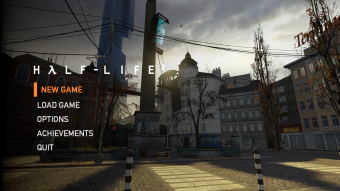
Screenshot of the Gamepad UI from  Half-Life 2.
Half-Life 2.This page details how to customize the controller-oriented UI, referred as Gamepad UI in Half-Life 2 and/or Portal.
Scheme resource files
All of these {{code|[[.res}]]} files are located in 
<mod>\gamepadui folder. Open these files with any text editors (such as Windows Notepad, Notepad++) to edit them.
schemeachievement.res- Achievement page.schemechapterbutton.res- New game/select chapters.schemeextras.res- Extras ( 20th anniversary update only)schememainmenu.res- Game menu (basicallyGameMenu.resbut for Gamepad UI)schemepanel.res- [Todo]schemesavebutton.res- [Todo]schemetab.res- Tabs, used in options menu.
schemeoptions_checkybox.res- Checkboxschemeoptions_sectiontitle.res- Section title (top left)schemeoptions_skillyskill.res- Difficulty optionsschemeoptions_slideyslide.res- Slider (used in options)schemeoptions_wheelywheel.res- Toggle (used in options)
Todo: Document more and make this page better.